

This tutorial will guide you through the process of changing the resident characters of your Xprinter using the print demo application.
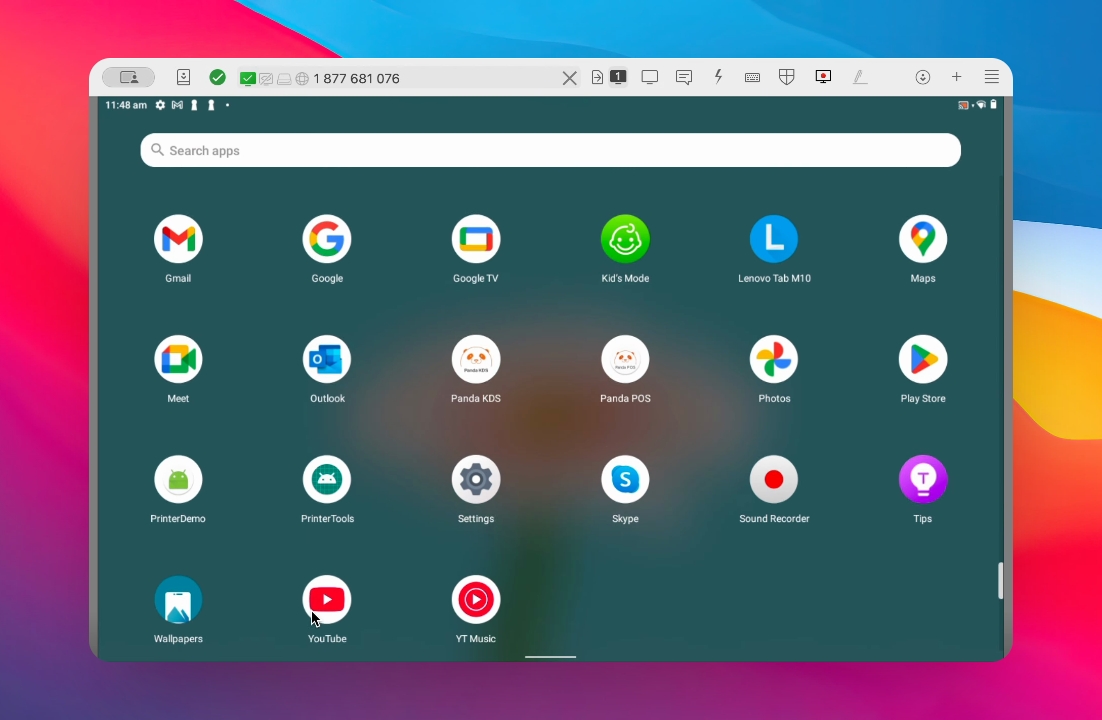
Begin by opening the Print Demo App.
Next, choose the connection type for your printer, which could be USB, Network, Bluetooth, Serial, or Mac.
Select your printer from the list that appears after choosing the connection type.
Make sure to choose the appropriate printer from this list.
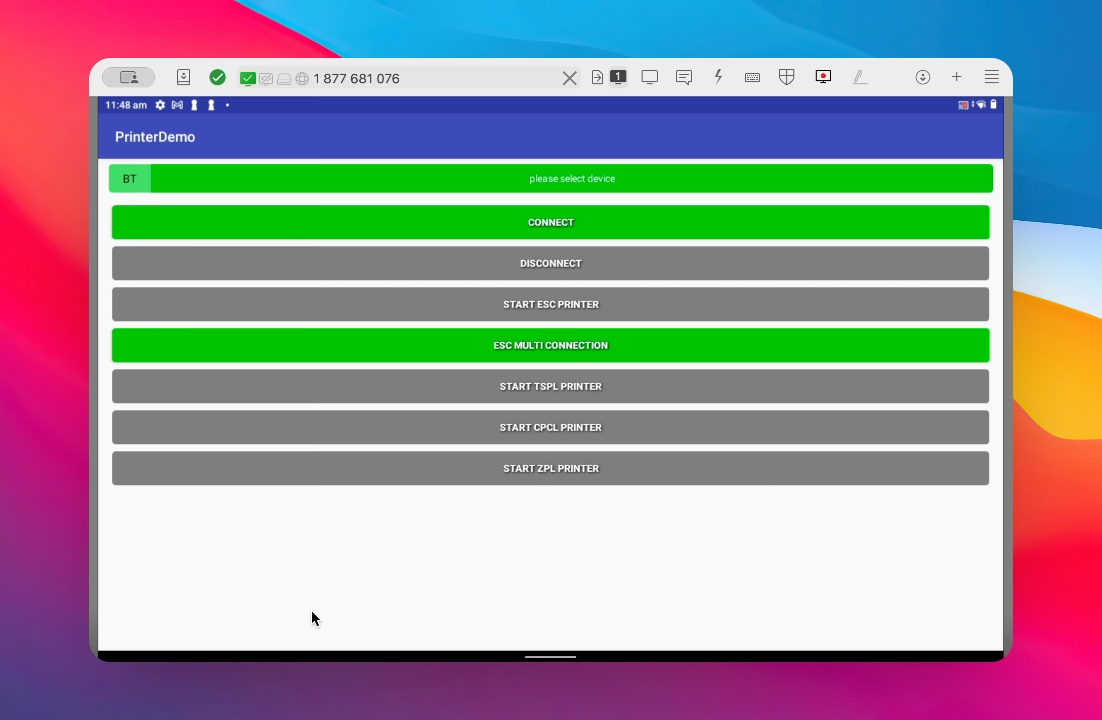
After selecting your printer, click on Connect.
Once you tap on connect, the application will initiate a connection to the printer.
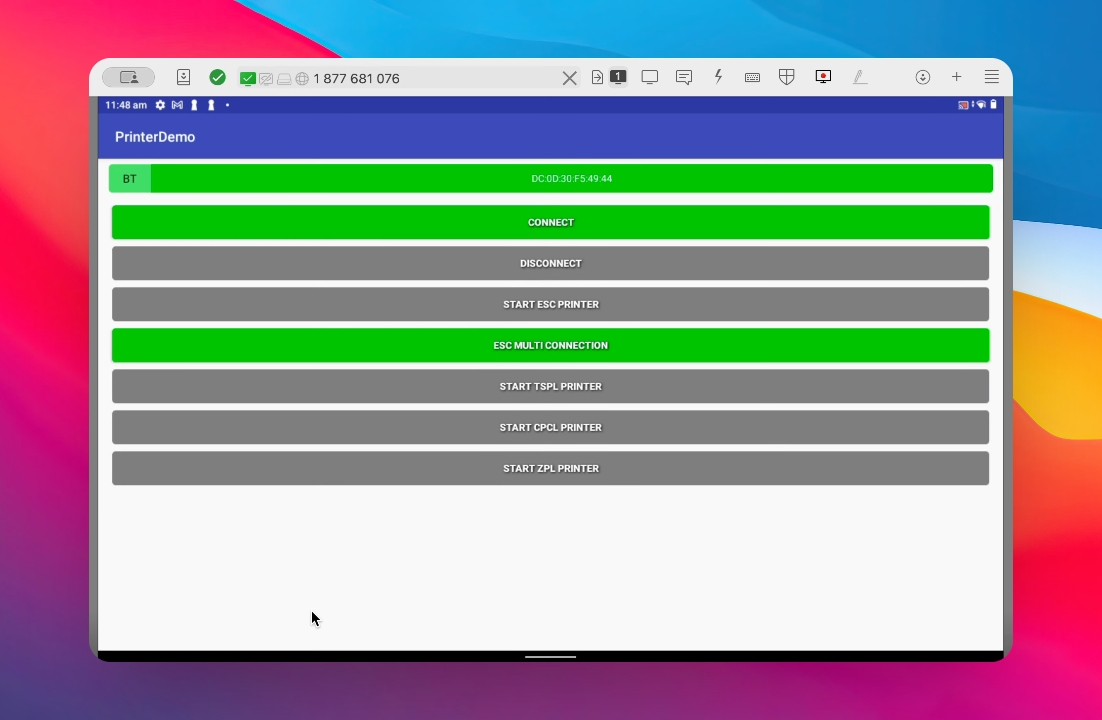
Next, you need to start the escape printer function.
To do this, simply select Start Escape Printer.
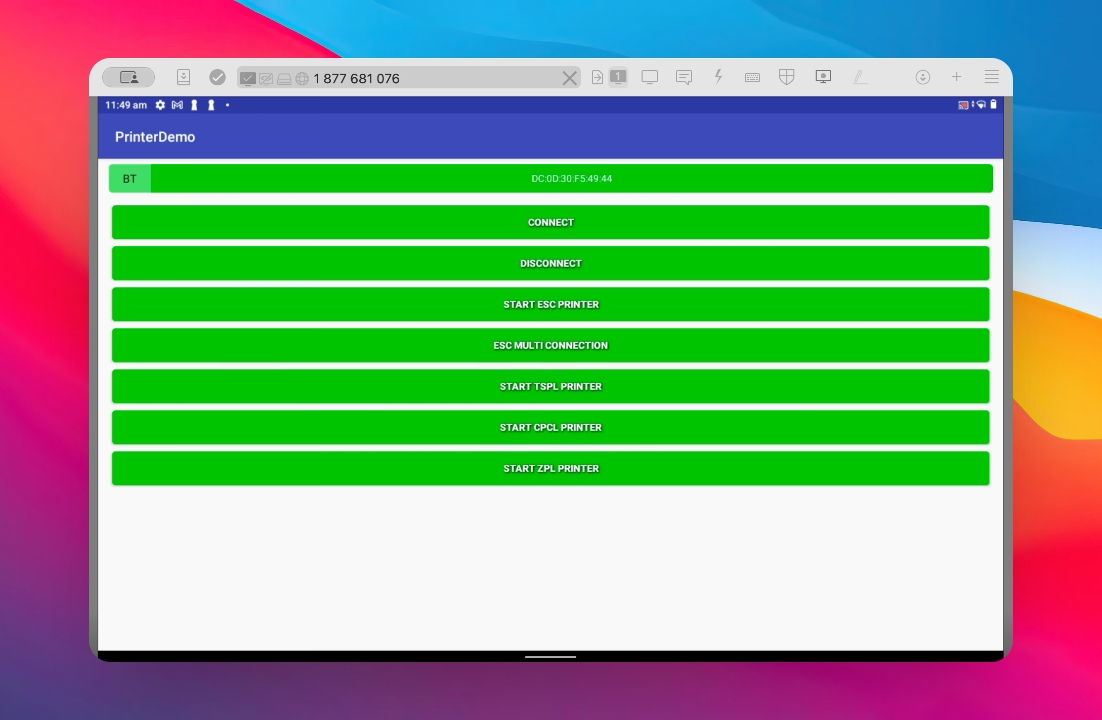
Now, enable the Chinese mode on the screen.
Make sure to toggle this setting to On.
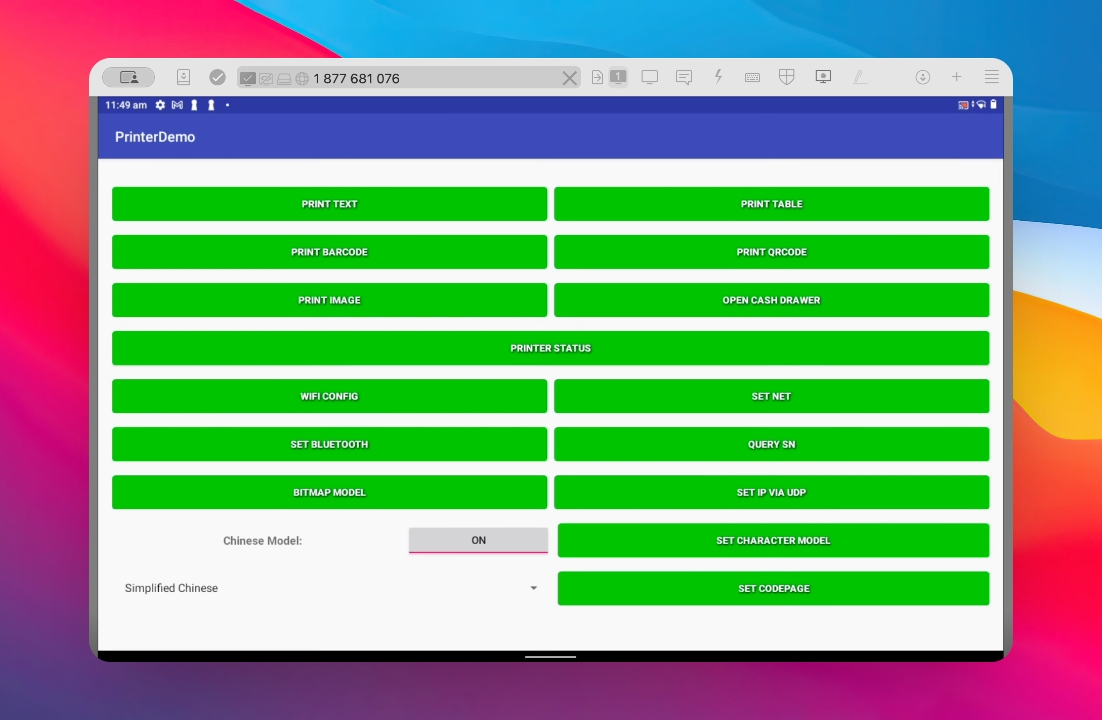
Finally, set the character mode.
You will hear a beep indicating the process has completed.
Please note that the printer will disconnect after this step.
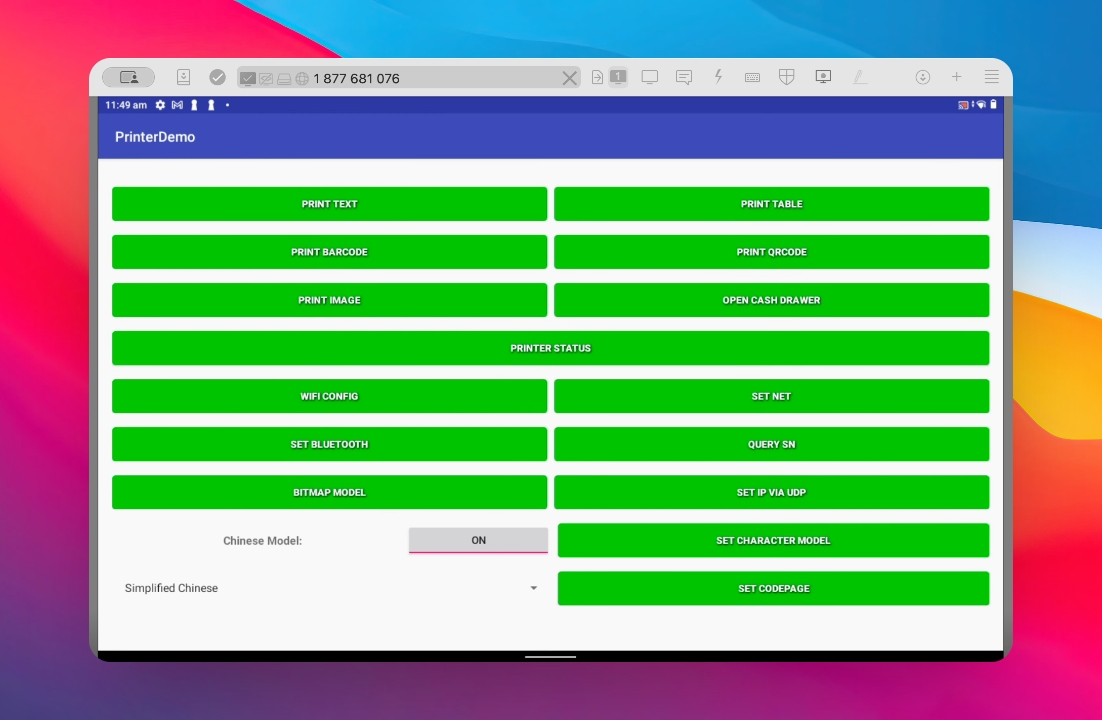
By following the steps outlined in this tutorial, you will successfully change the print characters of your Xprinter.