

This tutorial provides an exploration of the various features and settings of the Panda POS system, which is a comprehensive point-of-sale solution designed for restaurants and food service businesses.
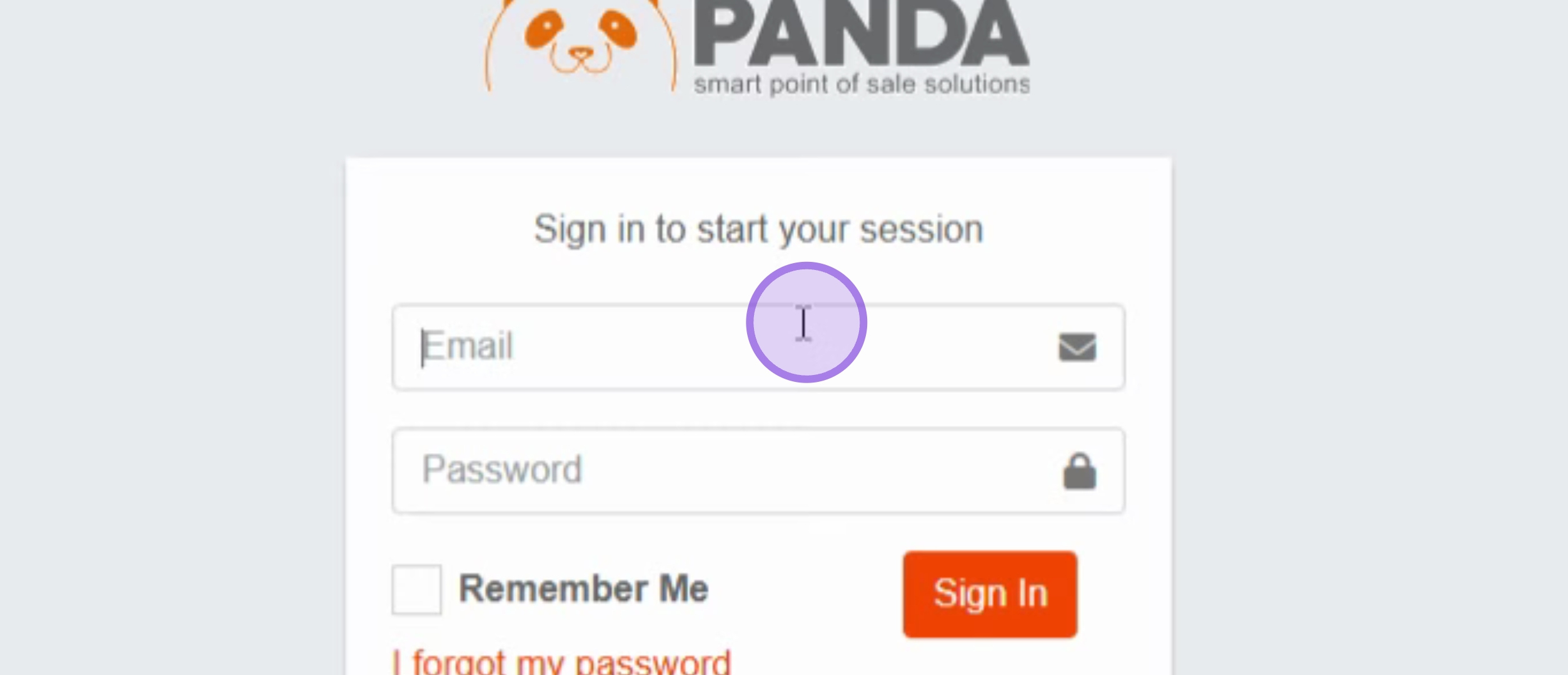
Begin by entering your Email in the input field.
Next, input your Password in the designated field.
Then, click on the Sign In button to access the system.
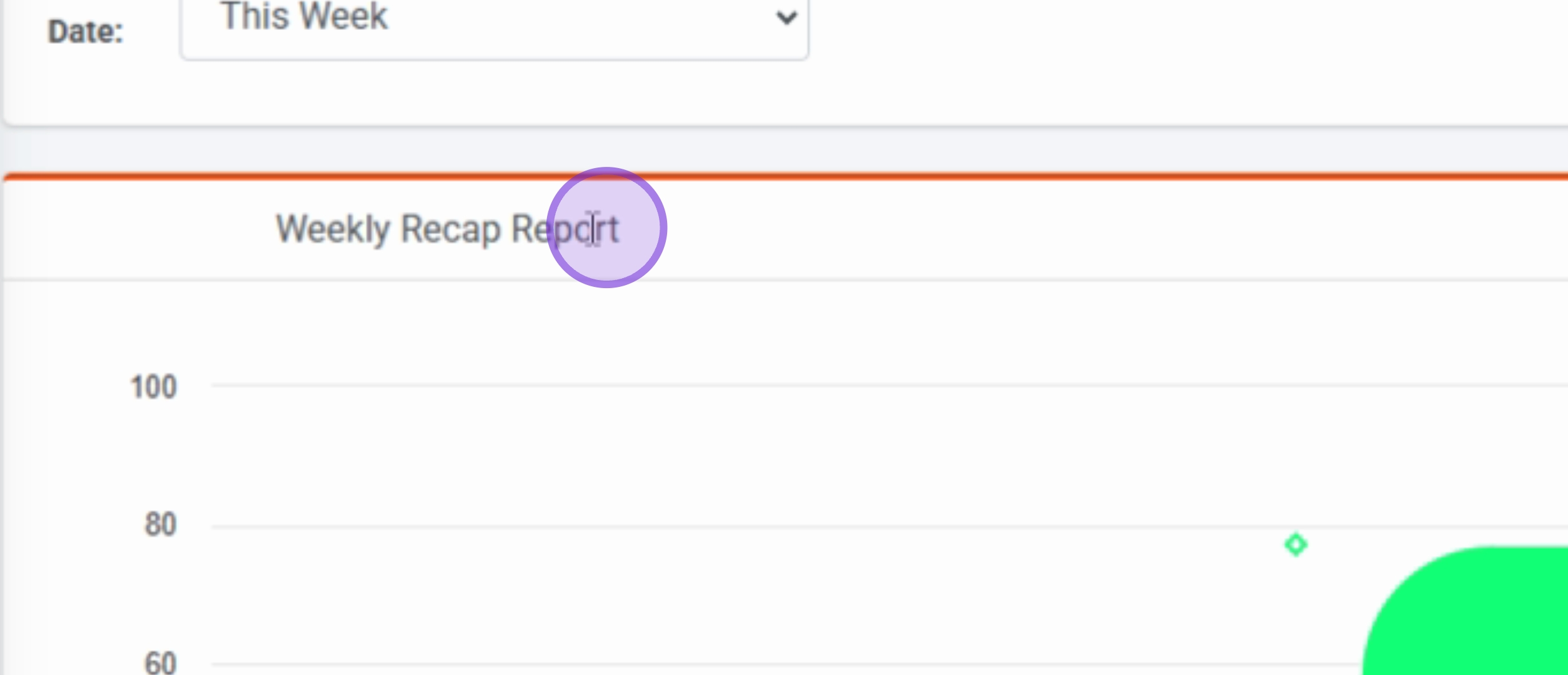
Upon signing in, you will be presented with the Dashboard, which features a Weekly Recap Report.
You can view the Customers Location map and also check the Top 10 Customers and Top 5 Products.
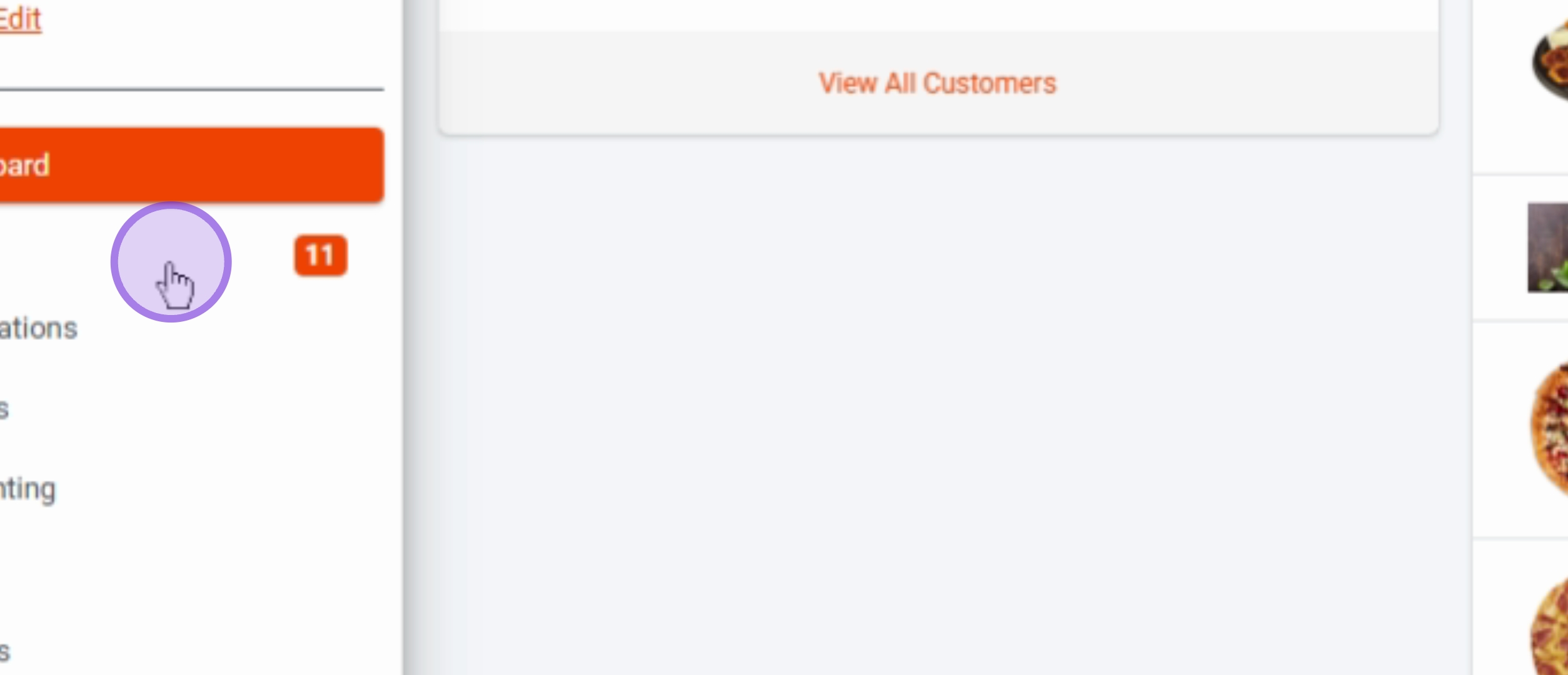
To view orders, click on Orders in the sidebar menu.
This will navigate you to the Orders Listings page.
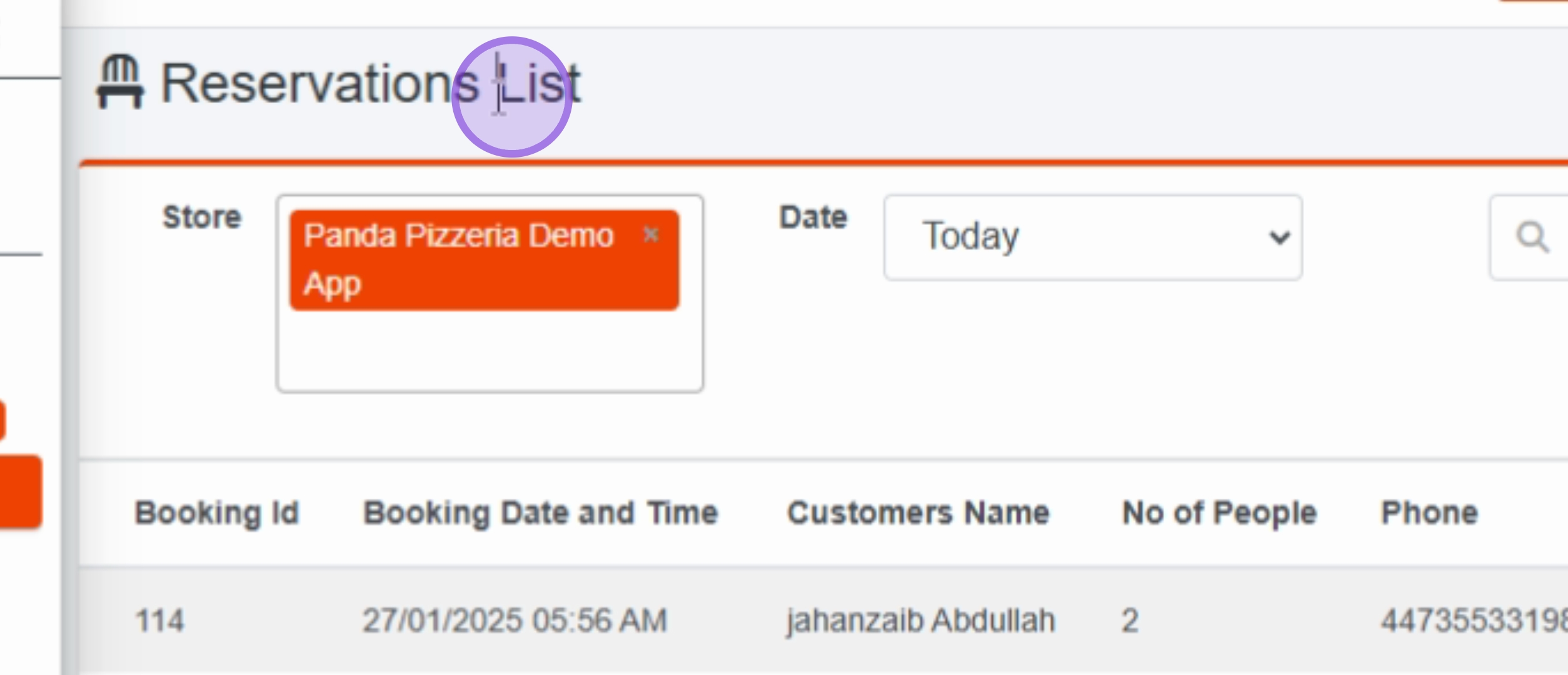
Click on Reservations in the sidebar menu to access the Reservations List page.
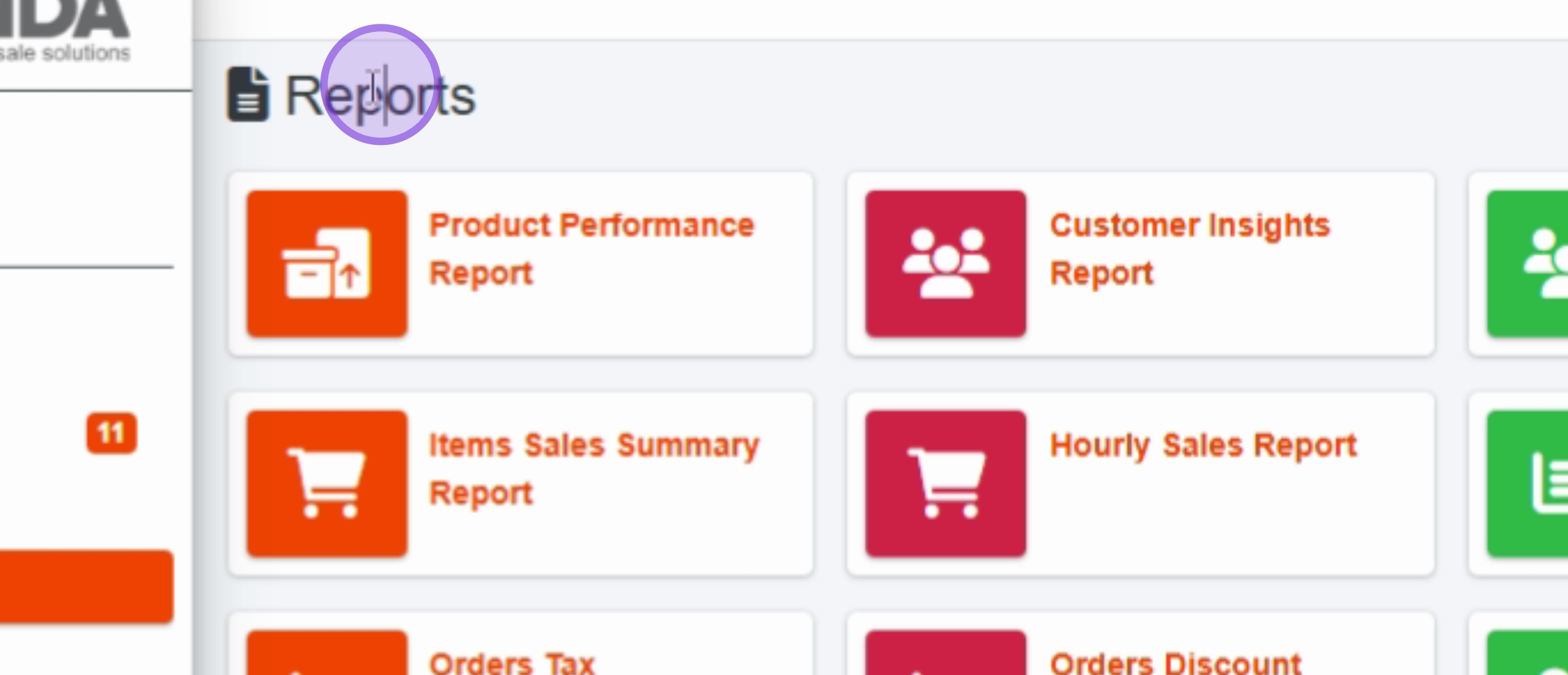
For reporting, click on Reports in the sidebar menu, followed by Accounting for financial data.
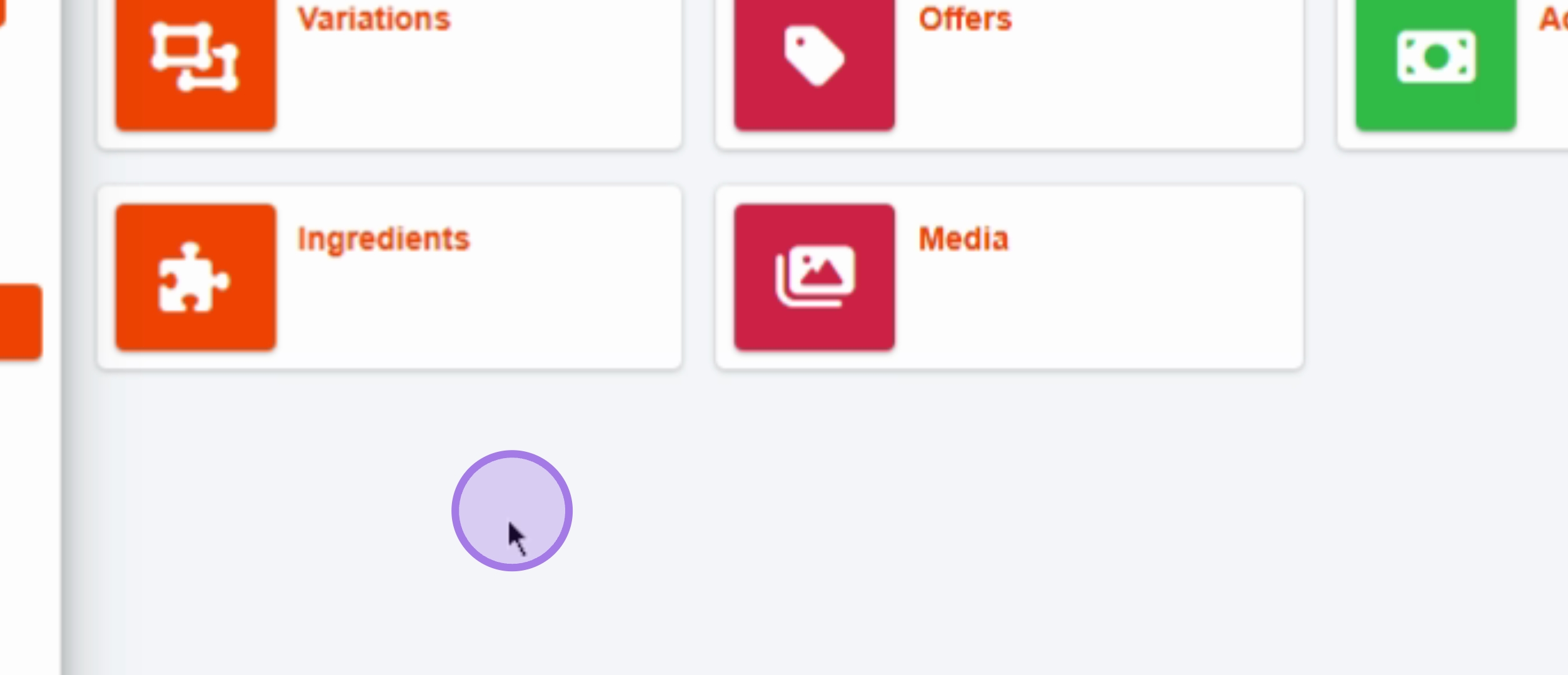
Manage your offerings by clicking on Menu in the sidebar menu, and then click on Recipes to view or modify recipes.
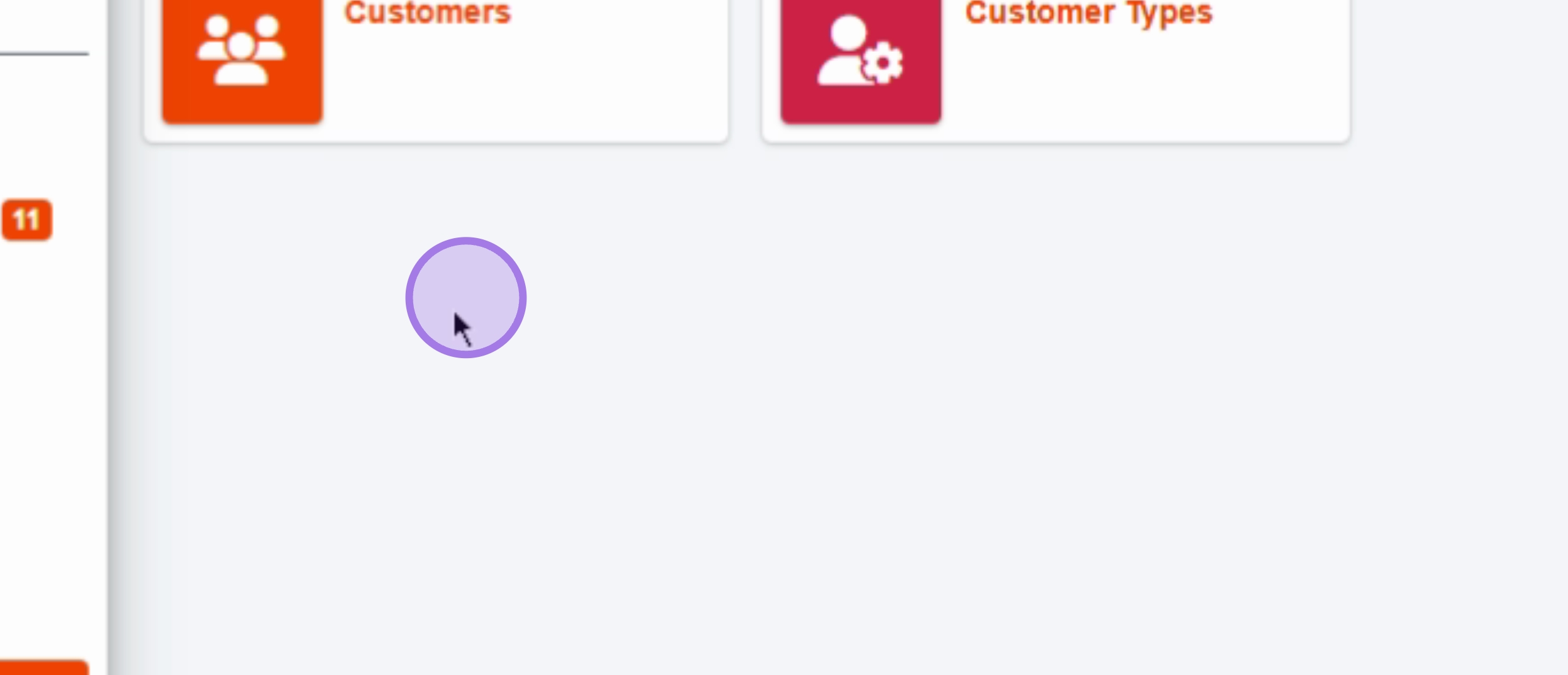
To view customer data, click on Customers in the sidebar menu.
Use the Marketing menu for marketing tools and insights.
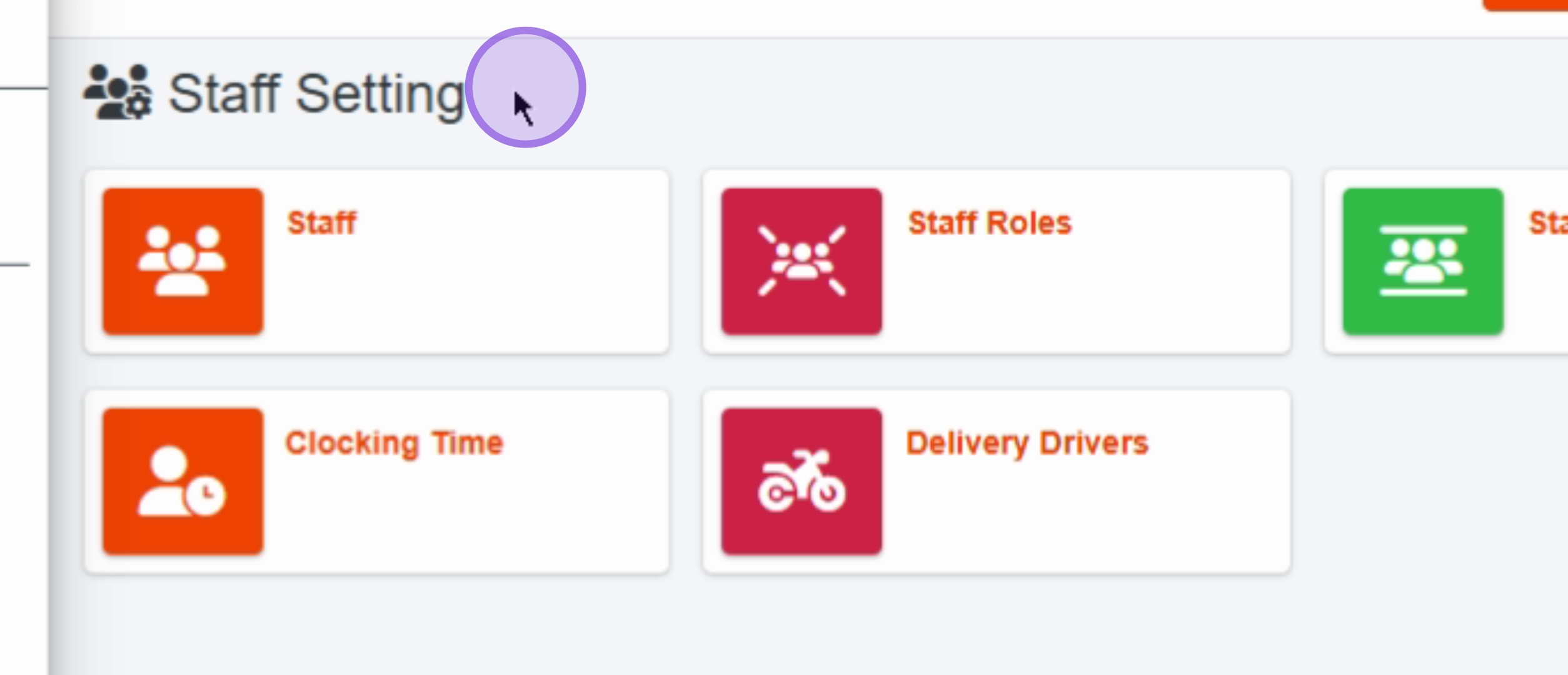
Adjust your business operations by navigating to Staff Settings, Store Settings, Online Settings, and Apps Settings in the sidebar menu.
This concludes our overview of the Panda POS system. We have explored various sections including the dashboard, orders, reservations, reports, menu management, customer data, marketing tools, and system settings.